PrismFinance
← All guides
Daily control

Your routine for recording, reviewing and correcting

From the first entry to a weekly review: categories, shortcuts, corrections and checked copies.

◷ 20–30 min of practice◎ Finish with a repeatable routine for entering and checking the data behind your analysis.
BEFORE YOU START

What you will need

  • One payment and two expenses with receipts.
  • Access to Records, the records list and Calendar.

Images are Android screenshots from an English-language version of Prism. Boxes and arrows point to the explained control; language, names and layout may differ in your version or platform.

01
Settings → Menu customisation

Adapt the menu to this priority

Find menu customisation and choose “Daily control”. This configuration organises the tools you see; your personal income profile and record history are separate information.

After applying it, open the menu and find the guide’s screens. If a tool is missing, check visible items in Settings and its availability in your version. You do not need to delete records to change focus.

Do this
  1. Open Settings and find menu customisation.
  2. Apply “Daily control” and check the menu.
  3. Find the tools and keep your existing records.
✓ What you should see

The menu reflects your priority and you have identified the walkthrough screens.

✦ Tip

You can combine these focuses with any of the four personal income profiles.
02
Records → Income

Separate expected and received payments

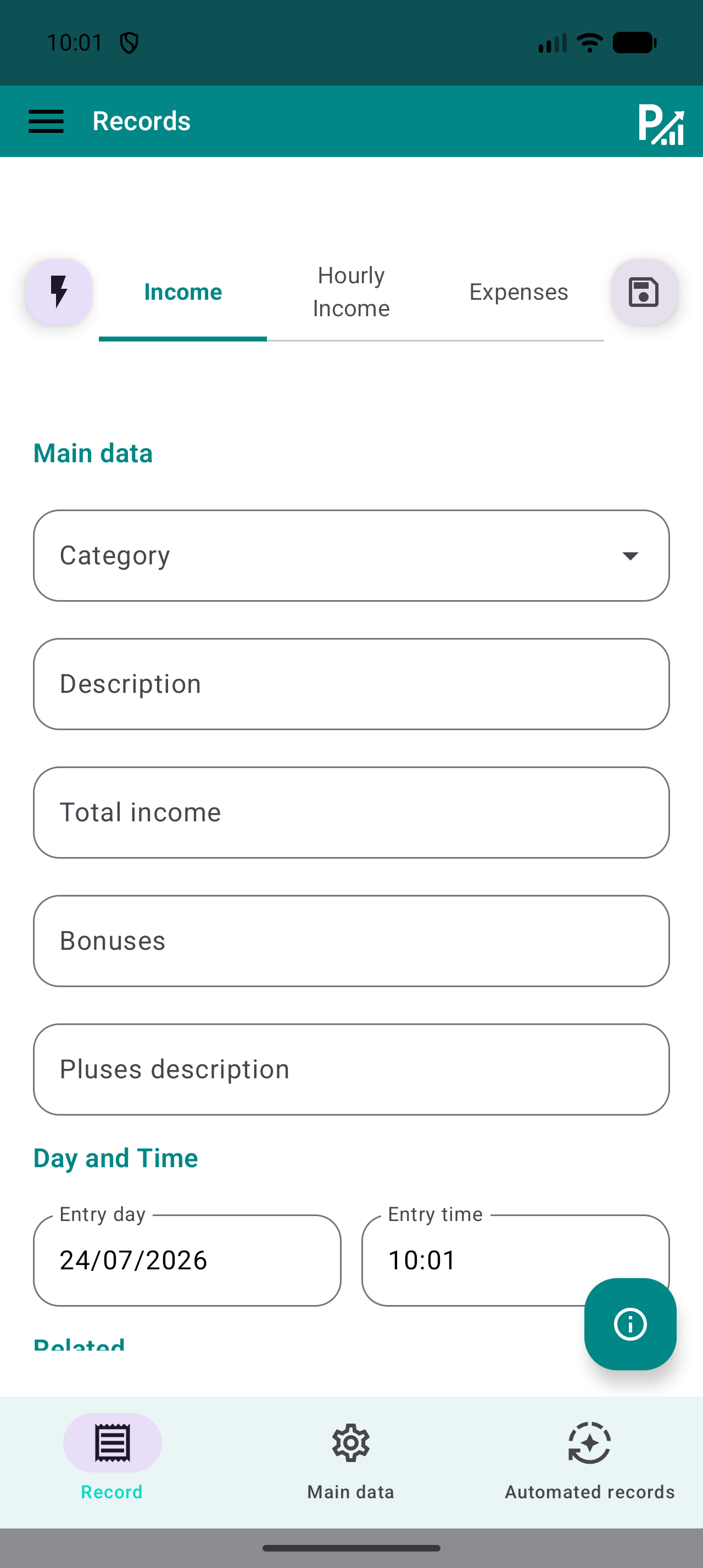
Keep your list of jobs or pending payments as a planning reference. In Records, add each income entry with the actual amount and date when received. Use a description identifying its source, such as “October shifts” or “Design project”.

If payment arrives in instalments, record each receipt on its own date with a consistent description. An accepted job, issued invoice or prediction does not equal available money. If you use future entries in your workflow, identify them and check which periods your reports include.

Do this
  1. Check the amount actually received.
  2. Enter its category, payment source and actual date.
  3. Save and find that payment in the records list.
✓ What you should see

Your income records reflect identifiable payments without mixing in estimates.

✦ Tip

If you expected 400 and receive 250 now, record 250; the remainder stays on your pending-payment reference.

Prism record form showing category, description, amount and date.
The category organises the record; the description helps you recognise it later.
03
Records → Expenses

Give each expense a useful category

Select Expenses and record an actual payment. Separate, for example, Food, Housing, Transport and Leisure. Add a short description you can search later; consistent categories make budgets and analysis easier to interpret.

If you have configured accounts or tags, check the association before saving. Start with a short category list rather than several almost identical categories. Do not record a payment again just because it also appears on a receipt or statement.

Do this
  1. Select Expenses and the appropriate category.
  2. Add the description, amount and payment date.
  3. Save and confirm the record is an expense, not income.
✓ What you should see

Your actual expenses are organised into recognisable categories.

✦ Tip

Always use “Food” for groceries instead of alternating between similar categories.

Prism record form showing category, description, amount and date.
The category organises the record; the description helps you recognise it later.
04
Quick templates → Records

Create a shortcut while checking every entry

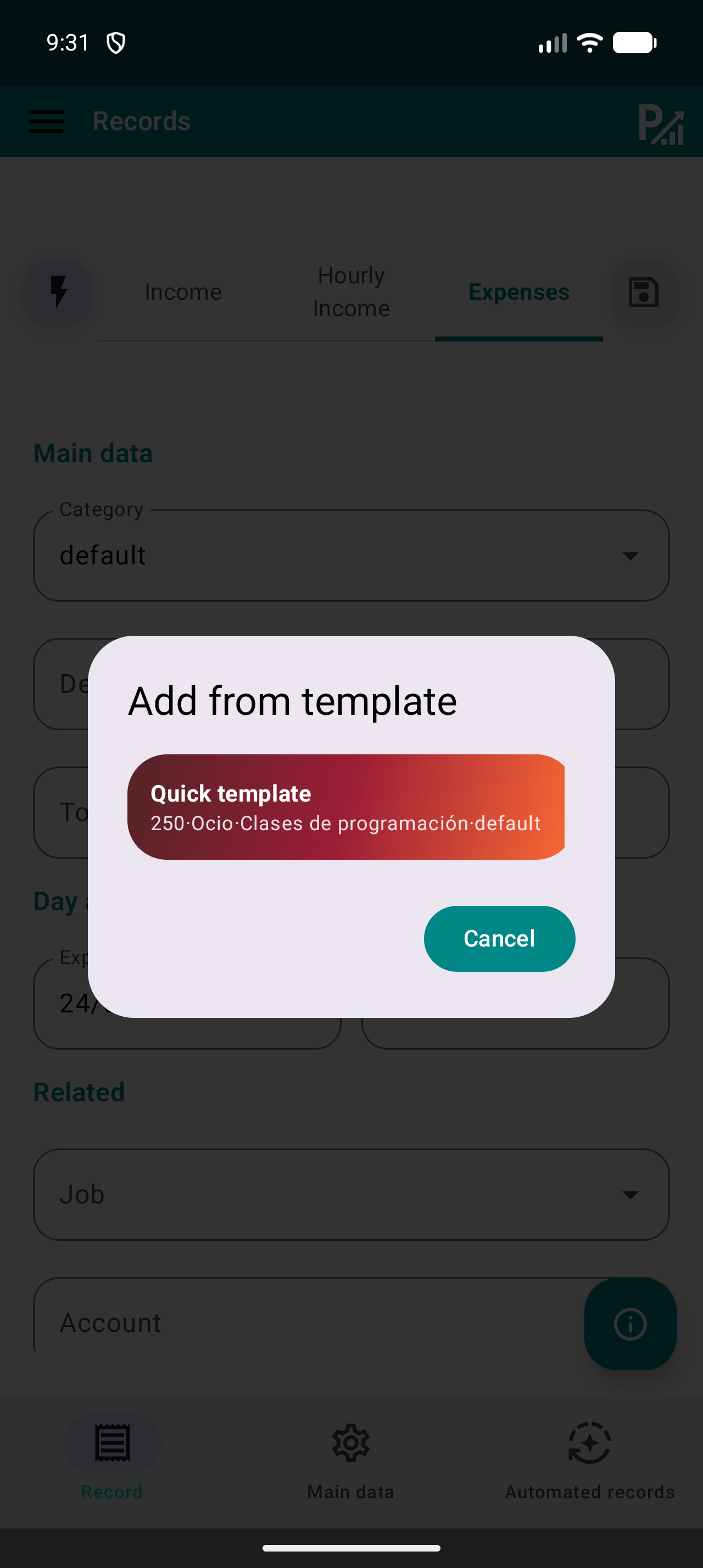
Open Quick templates and prepare a preset for income, an expense or hourly work you often record. Choose the common details supported by your version: description, category or tags, amount and associations.

To use it, select the template from Records or the templates list. Check the form before saving: today’s date, amount or hours may differ. A template speeds up entry; it does not prove that payment occurred.

Do this
  1. Prepare a template with repeated details.
  2. Select it to open or complete the form.
  3. Update the date and amount and save once.
✓ What you should see

You can reuse common details while keeping each record accurate.

✦ Tip

Review old templates when a rate or category changes.

Quick template selector in the Prism record form.
The template fills common details. Check the amount and date of the current record.
05
Records list → Details / Edit

Correct an entry from its details

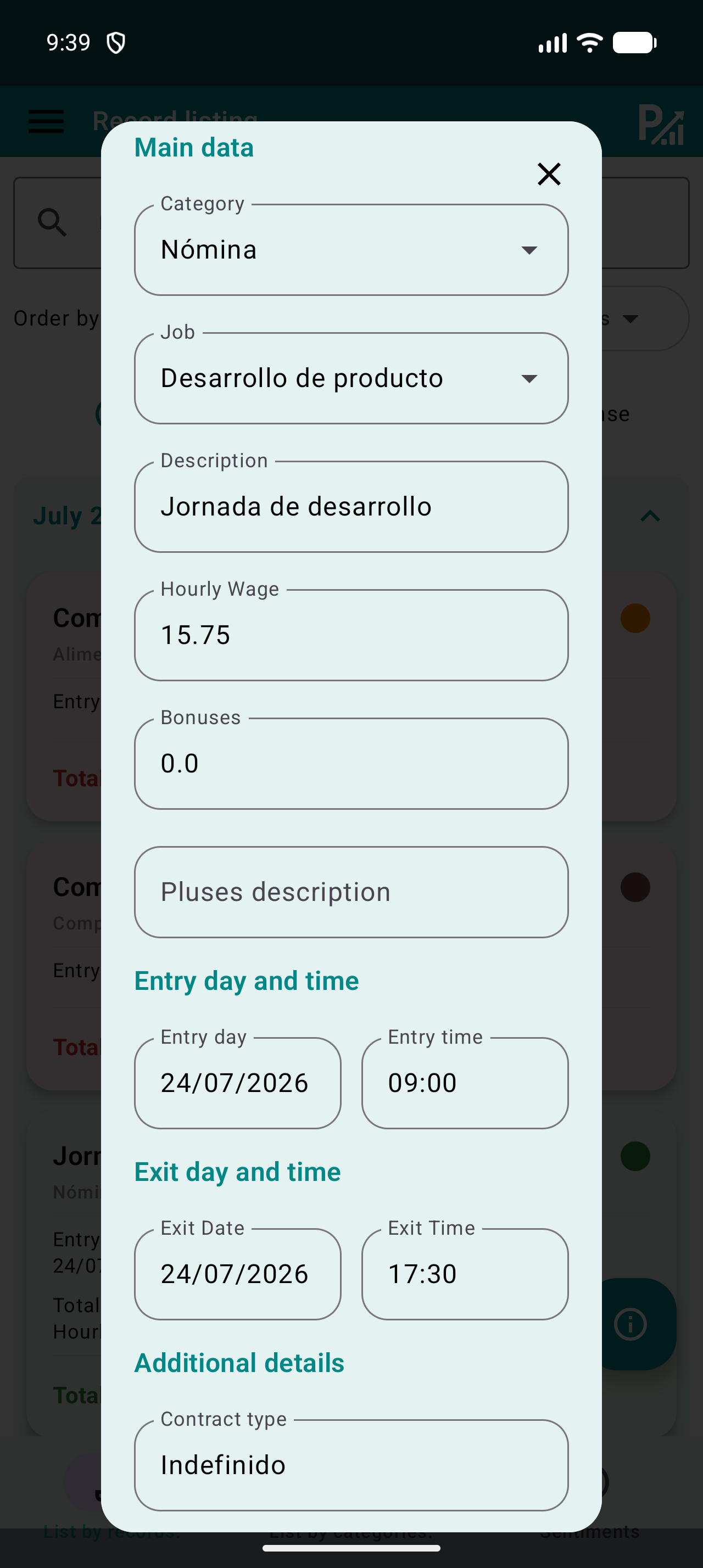
Search for the entry by description and check its type, date and amount. Open its details and use the available edit option to change the incorrect field in the original, such as a category or an incorrectly entered rate.

After confirming, return to the list and verify the result. If the category changes, also check the affected budget. Avoid adding another entry to compensate for a data-entry mistake: it makes the total’s source harder to explain.

Do this
  1. Find the original and open its details.
  2. Correct the necessary fields and confirm.
  3. Check the list and the affected analysis.
✓ What you should see

The original reflects the correction and you have not created a duplicate.

✦ Tip

If it comes from a recurrence, also review its configuration to prevent the same mistake later.

Record editor with category, job, description and rate.
Check the category and description of the entry you are editing.
06
Records list → Calendar → Charts or Statistics

Review weekly and close the month

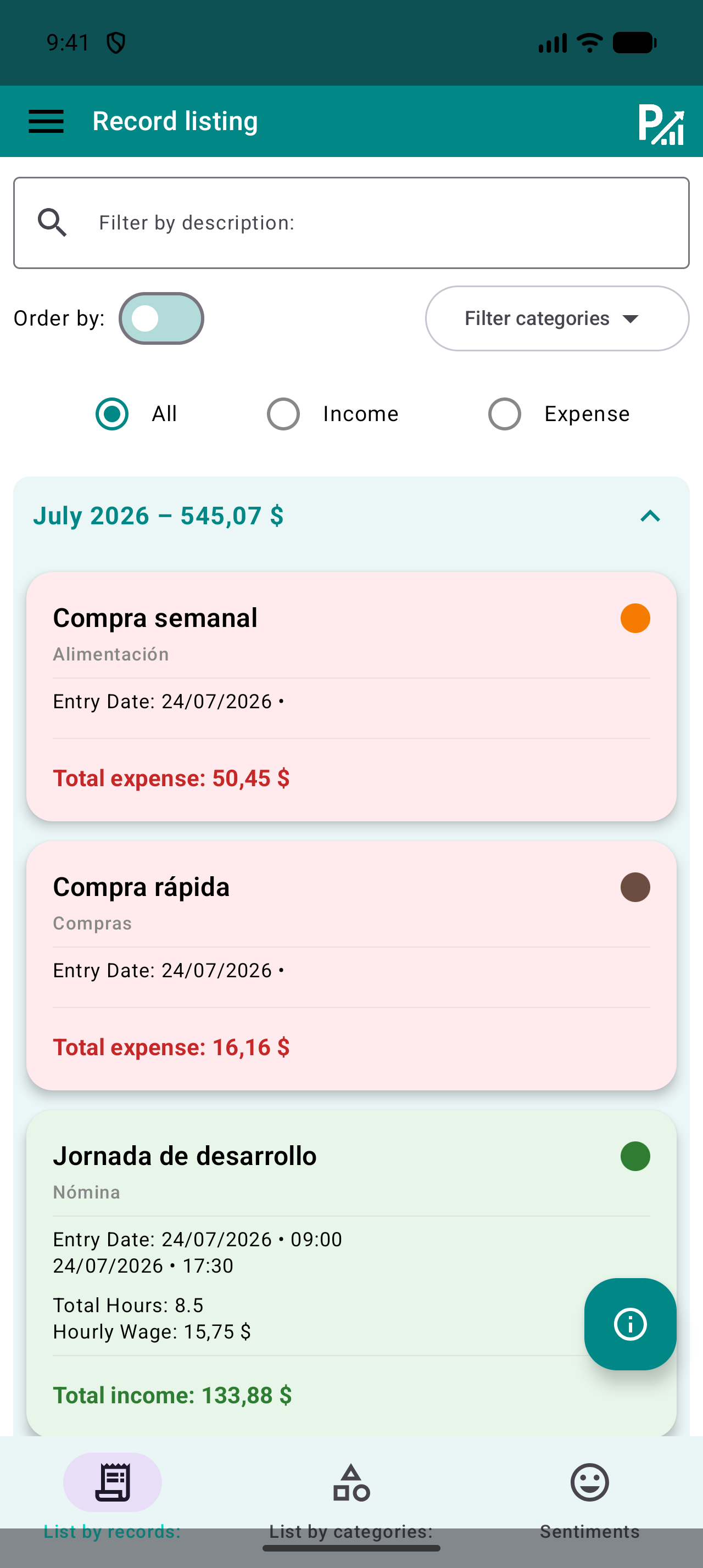
In the records list, search descriptions and use type and category filters to find the entries you want to review. Check amounts, dates and repeated records. The Calendar helps locate days with activity; colours do not replace reading the details.

At month end, use the same period in Charts, Statistics and Budgets. Compare the result with receipts you keep and note the category or habit to review next month. Your records balance depends on what you entered and may differ from your bank balance.

Do this
  1. Filter the week’s records and check the details.
  2. Correct mistakes in the original record.
  3. At month end, compare tools using the same period.
✓ What you should see

The period is reviewed and you know which entries underpin your charts and budgets.

✦ Tip

Keep reviews short and regular. Checking ten entries promptly is usually easier than reconstructing several months.

Prism records list with description search, category filters and income or expense filters.
Search descriptions and narrow the category or type to review specific records.
07
Menu → Export / Backup

Keep a copy and check the export

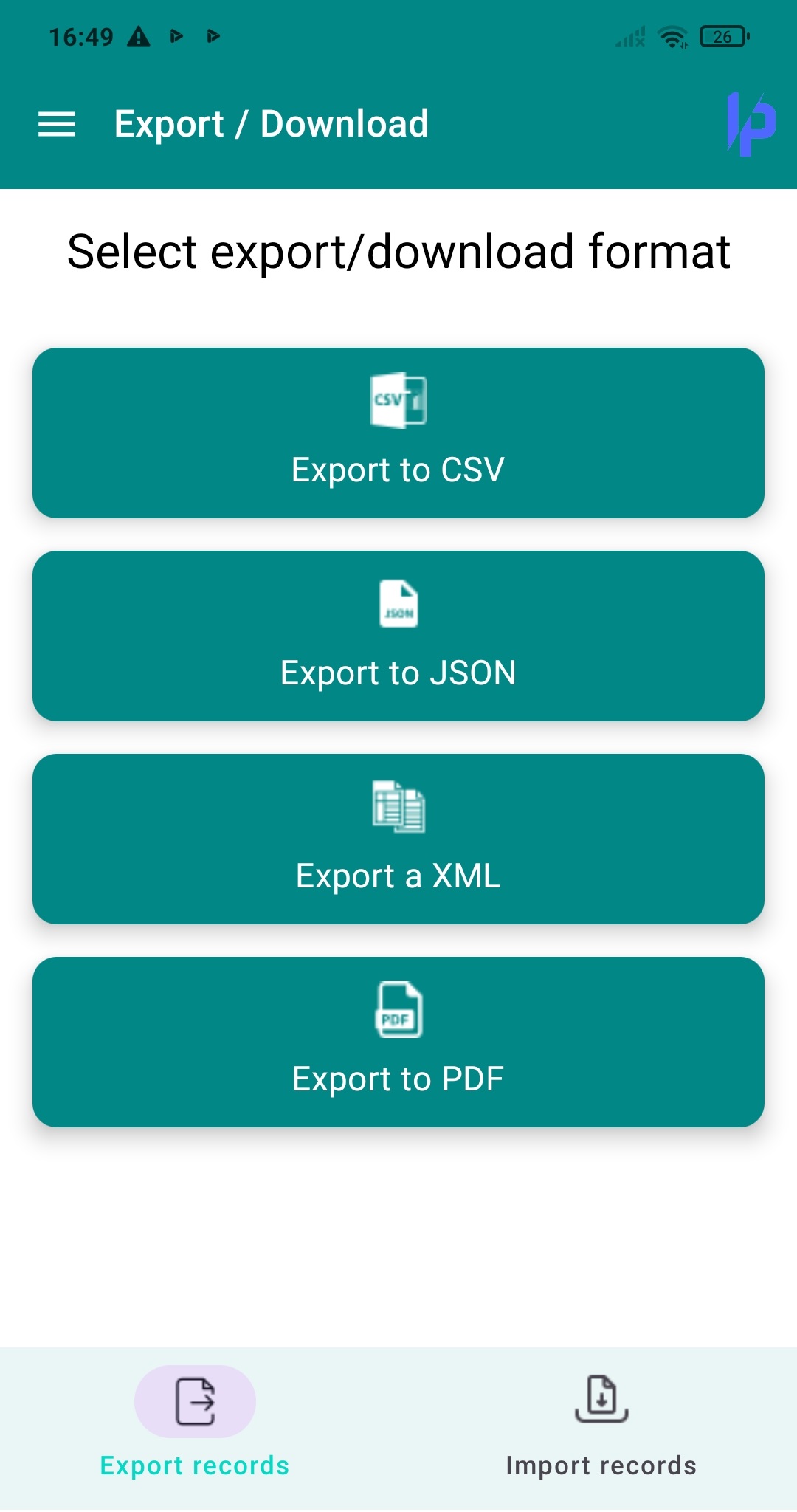
Find Export or Backup in your version. Choose an available format for your intended use and save the file in a private location. Open the export and check it includes the expected period and entries.

An export for reviewing data and a restorable backup may serve different purposes. Before changing devices or restoring, check the supported format, keep the previous copy and review your version’s restore instructions. Do not assume CSV can recover all settings.

Do this
  1. Open Export or Backup and choose the appropriate format.
  2. Save the copy with a recognisable date.
  3. Open the file and check its contents before relying on it.
✓ What you should see

You have a checked file and know whether it is intended for review or restoration.

✦ Tip

Files may contain your financial data. Only share a file you have reviewed with someone you have chosen.

Prism Export screen showing CSV, JSON and XML options.
Choose a format available in your version and check the downloaded file.
WRAP UP

Quick checklist

  • Each entry has a category, description and date.
  • I checked an entry from the records list.
  • I know how to correct the original and avoid duplicates.
  • I reviewed the period and saved a checked copy.
AVOID THESE MISTAKES

Common mistakes

Recording a promise as a payment

Check the date and amount received; keep forecasts as an identified reference.

Comparing different periods

Use complete months and the same filtering method before interpreting a difference.

Correcting by adding another entry

Edit the original when the problem is incorrectly entered data.

NEXT STEP

Keep exploring

Follow us