PrismFinance
← All guides
Self-employed or professional

From projects and hours to organised professional records

Organise activity, record hourly income, reuse templates and prepare a documented review.

◷ 30–40 min of practice◎ Finish with an organisation method, a checked hourly record and an export you can review.
BEFORE YOU START

What you will need

  • A sample project or job with dates and a rate.
  • Receipts for payments and expenses you want to record.
  • A method to separate activity and personal entries.

Images are Android screenshots from an English-language version of Prism. Boxes and arrows point to the explained control; language, names and layout may differ in your version or platform.

01
Onboarding and Settings

Set up your starting point

In onboarding choose “Self-employed or professional”, then your first priority: Daily control, Budget, Debt, Savings and emergency or Tax planning. These preferences personalise the experience; they do not change your recorded amounts.

If you already use Prism, open Settings and look for your financial focus or the option to reopen onboarding. Also check your currency and the categories you will use. Screen names and layouts may differ across Android, iOS and web.

Do this
  1. Select “Self-employed or professional” as your personal profile.
  2. Choose one priority to start with and continue until confirmation.
  3. Open the menu and find Records, the records list and the tools for your priority.
✓ What you should see

Your profile is selected and you know where to record and review entries.

✦ Tip

If a tool is missing, check menu customisation in Settings. You can change your focus later.
02
Main data / categories, tags and jobs

Organise clients and activity consistently

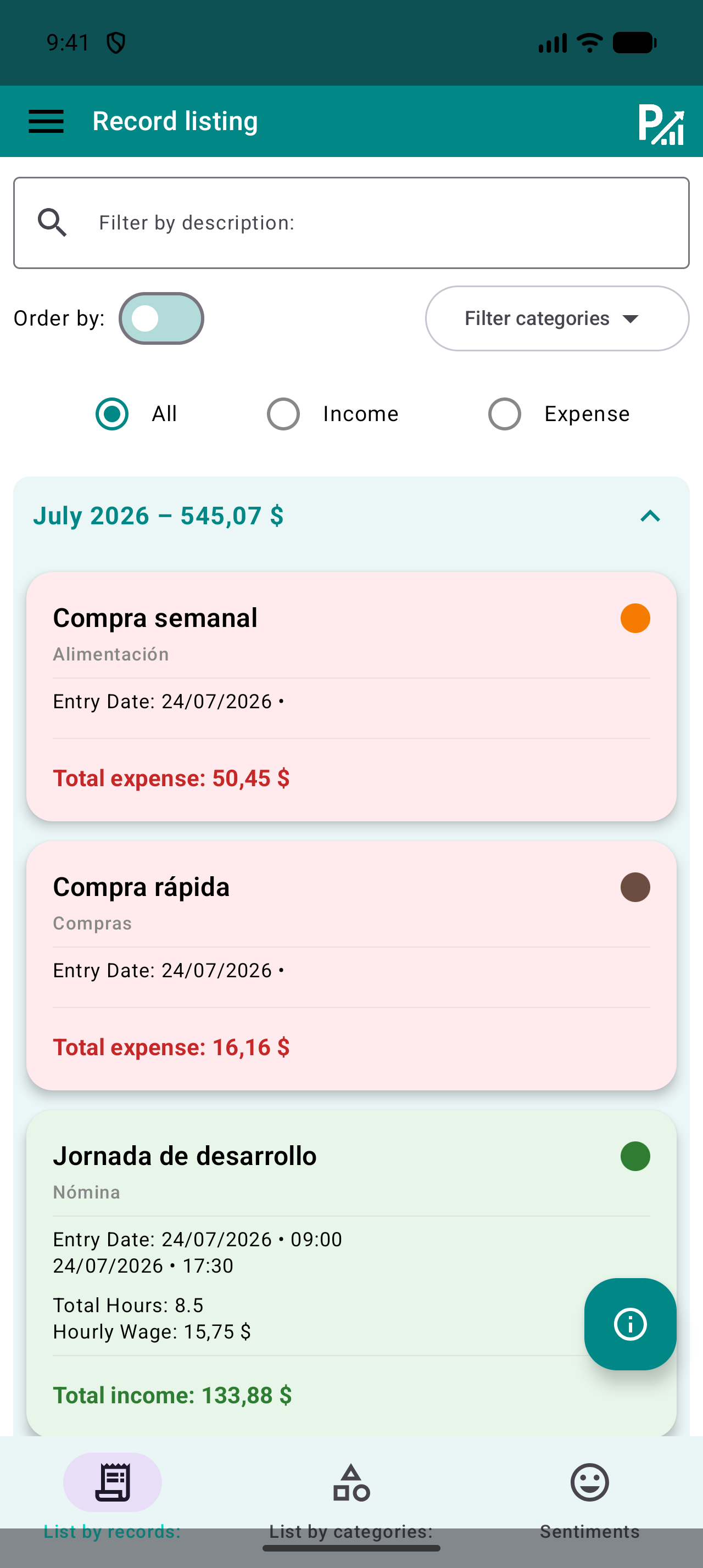
Define how to distinguish professional activity from personal expenses: clear categories and, where available, tags, jobs or accounts. Use a consistent name for the same client or project so you can retrieve related records later.

Prism helps organise records. Do not treat a tag as tax validation or confuse recording income with issuing an invoice. Keep original documents outside the record and check which tools are available on your platform.

Do this
  1. Choose names and categories for your activity.
  2. Associate entries with the client or project where your version supports it.
  3. Try searching the records list to check you can retrieve them.
✓ What you should see

You can distinguish activity records and find entries for the same project.

✦ Tip

Avoid near-identical names such as “Client A” and “Client-A” if you want to analyse one group.

Prism records list with description search, category filters and income or expense filters.
Search descriptions and narrow the category or type to review specific records.
03
Records → Income

Separate expected and received payments

Keep your list of jobs or pending payments as a planning reference. In Records, add each income entry with the actual amount and date when received. Use a description identifying its source, such as “October shifts” or “Design project”.

If payment arrives in instalments, record each receipt on its own date with a consistent description. An accepted job, issued invoice or prediction does not equal available money. If you use future entries in your workflow, identify them and check which periods your reports include.

Do this
  1. Check the amount actually received.
  2. Enter its category, payment source and actual date.
  3. Save and find that payment in the records list.
✓ What you should see

Your income records reflect identifiable payments without mixing in estimates.

✦ Tip

If you expected 400 and receive 250 now, record 250; the remainder stays on your pending-payment reference.

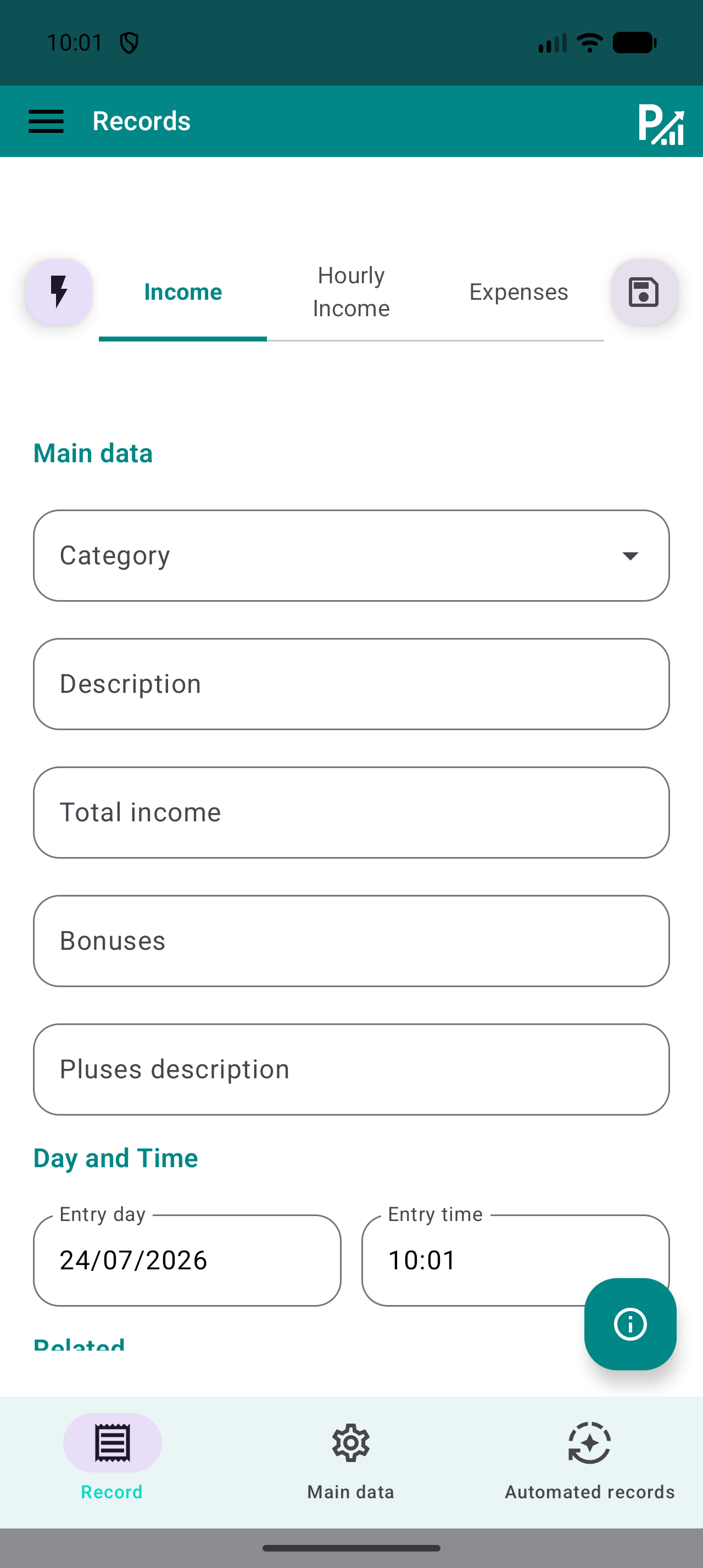
Prism record form showing category, description, amount and date.
The category organises the record; the description helps you recognise it later.
04
Records → Hourly income

Record hourly work and check the total

Select Hourly income. Fill in the start and end dates and times, paid duration, rate and extras supported by the form. Account for unpaid breaks when preparing the duration; do not assume elapsed time equals paid hours.

Compare the calculation with your agreement and the settled amount. If you record the work to check an estimate, do not add it again as independent income when paid: review the record and avoid duplicating the same operation.

Do this
  1. Choose Hourly income and fill in the work period.
  2. Check paid duration, rate and extras.
  3. Save and review the total in the records list.
✓ What you should see

The details let you check hours, rate and total without counting the same work twice.

✦ Tip

Calculation example: 6.5 hours × 12 = 78 before extras. Check what that amount represents in your record.

Income, Hourly income and Expenses tabs in Records.
Select the middle tab to open the hourly-work fields.
05
Quick templates → Records

Create a shortcut while checking every entry

Open Quick templates and prepare a preset for income, an expense or hourly work you often record. Choose the common details supported by your version: description, category or tags, amount and associations.

To use it, select the template from Records or the templates list. Check the form before saving: today’s date, amount or hours may differ. A template speeds up entry; it does not prove that payment occurred.

Do this
  1. Prepare a template with repeated details.
  2. Select it to open or complete the form.
  3. Update the date and amount and save once.
✓ What you should see

You can reuse common details while keeping each record accurate.

✦ Tip

Review old templates when a rate or category changes.

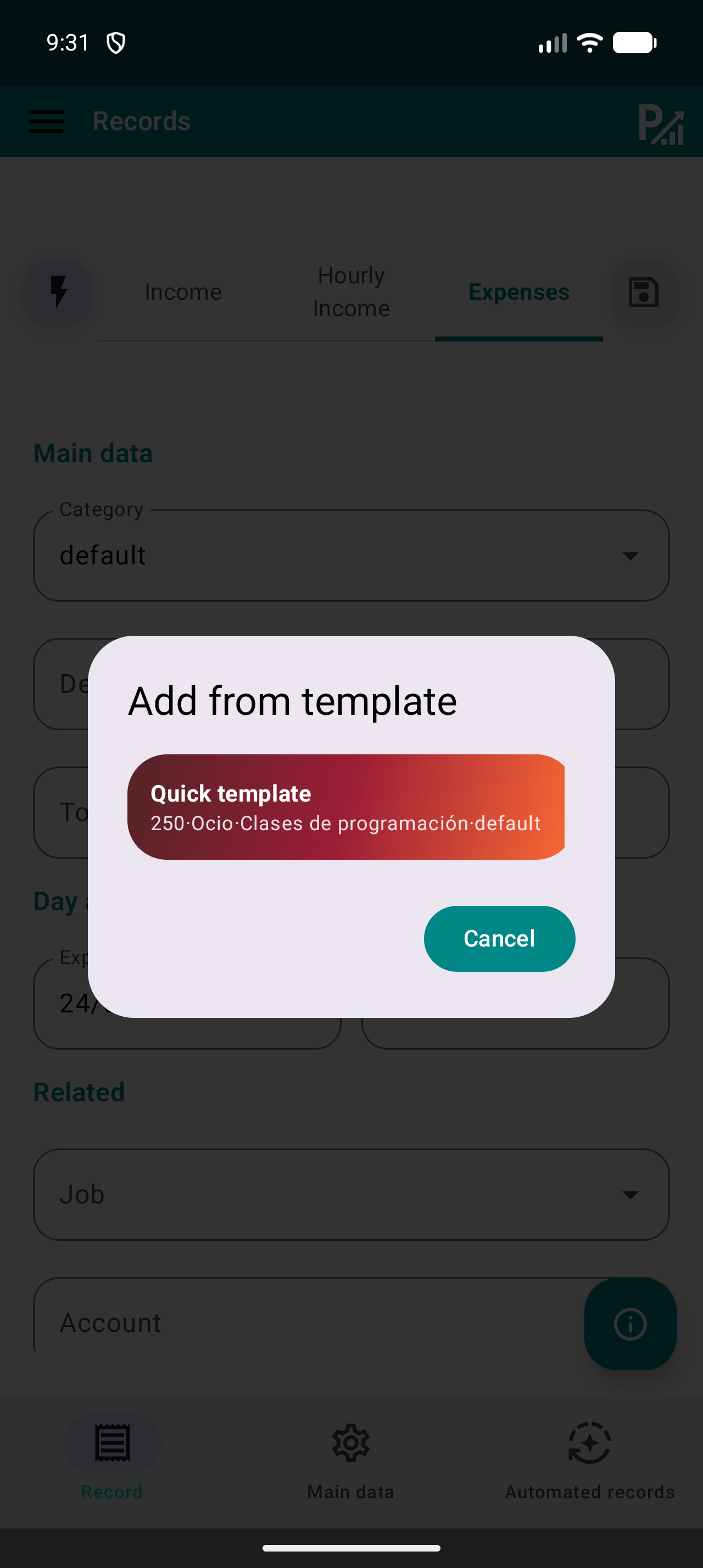
Quick template selector in the Prism record form.
The template fills common details. Check the amount and date of the current record.
06
Menu → Budgets

Create and check a monthly budget

Open Budgets, select a category and enter the monthly limit you want to track. The limit is a tracking reference, not a money movement: saving it does not record an expense or move funds between accounts.

Start with a category that already has recorded expenses. After saving, compare the spent amount and usage percentage with records from the same period. If they differ, check dates, categories and possible duplicates before changing the limit.

Do this
  1. Choose the category and enter a monthly limit.
  2. Save and find the active budget.
  3. Compare its spending with the records list for the same category and month.
✓ What you should see

You can see the amount recorded in that category against your chosen limit.

✦ Tip

Usage example: a limit of 300 and 75 recorded represent 25% usage. This is an example, not a spending recommendation.

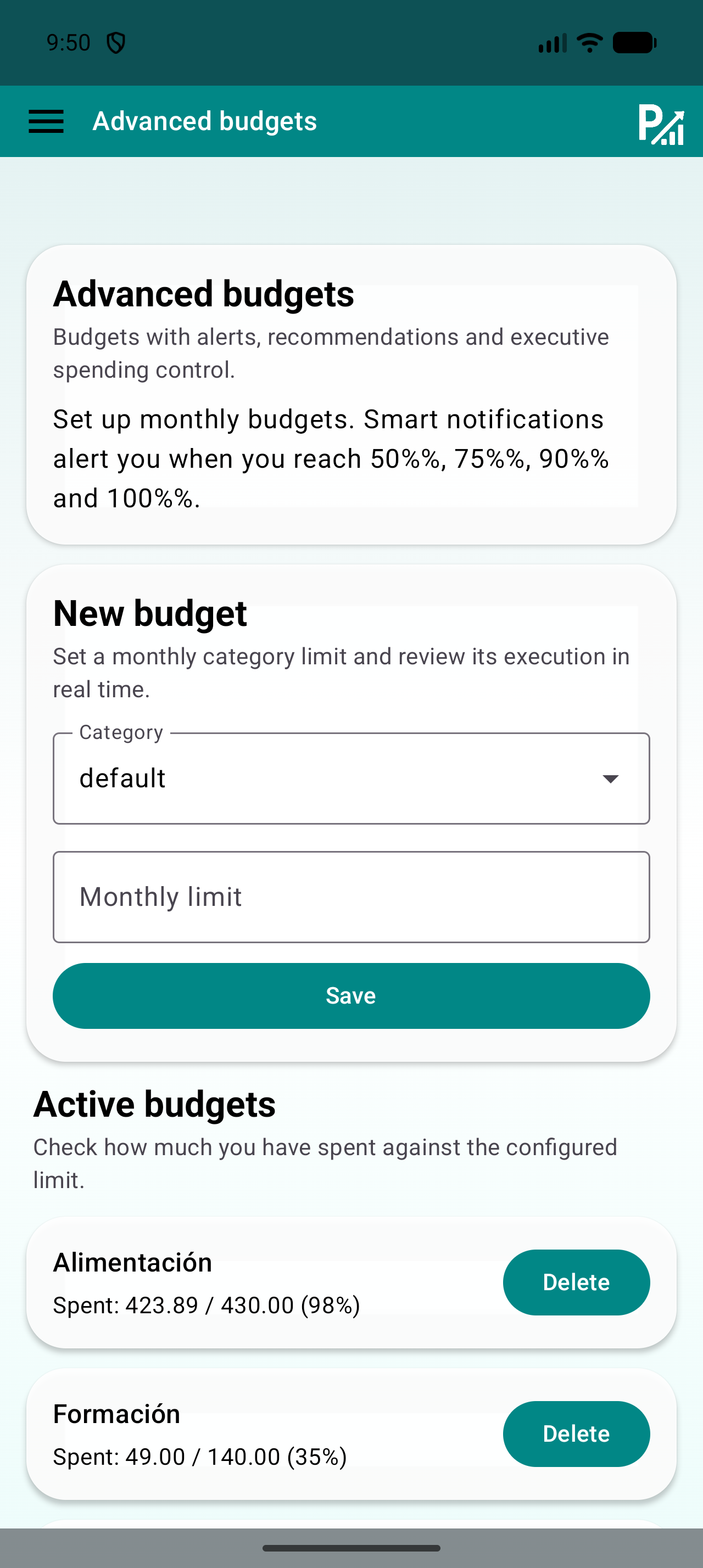
Budget screen with a category selector, monthly limit and Save button.
The limit belongs to a category. Make sure your expenses use that same category.
07
Records list → Export / Calculators

Prepare a review of professional records

Filter the period and check activity records have correct categories, descriptions and amounts. Separate receipts, expenses and forecasts so you can explain each figure’s source. Export only the data you need to review and compare it with original documentation.

If you selected Tax planning, calculators explore the scenarios available in your version. Check inputs, assumptions and the result’s scope. An indicative calculation does not make an expense deductible or file a return; confirm those matters using applicable documentation.

Do this
  1. Review the same period in the records you will export.
  2. Check descriptions and keep supporting documents.
  3. Open the export and check each figure has an identifiable source.
✓ What you should see

You can review your activity with consistent records and retrievable documents.

✦ Tip

Before sharing a professional export, check whether it includes personal records you do not need to send.

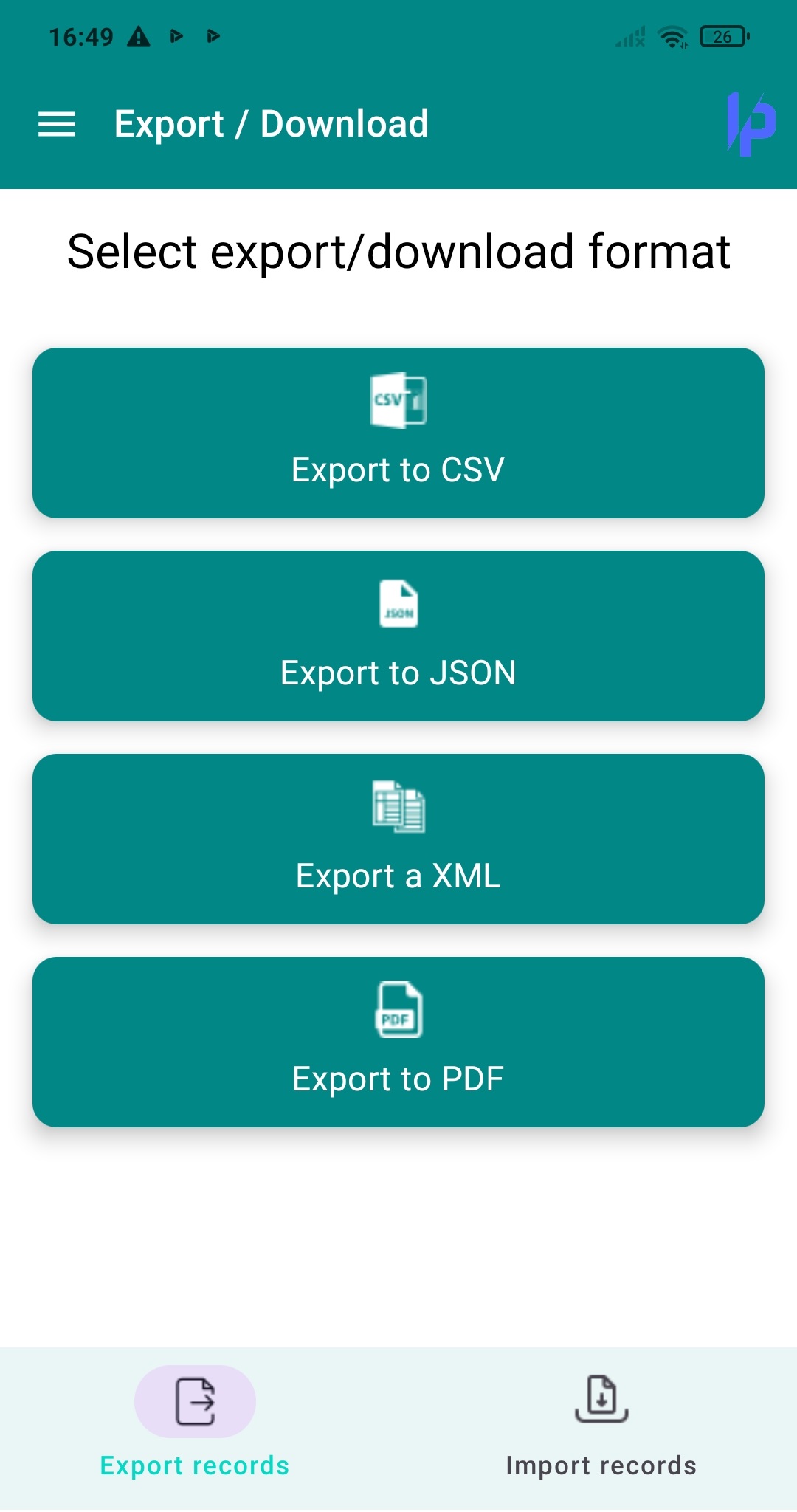
Prism Export screen showing CSV, JSON and XML options.
Choose a format available in your version and check the downloaded file.
08
Menu → Export / Backup

Keep a copy and check the export

Find Export or Backup in your version. Choose an available format for your intended use and save the file in a private location. Open the export and check it includes the expected period and entries.

An export for reviewing data and a restorable backup may serve different purposes. Before changing devices or restoring, check the supported format, keep the previous copy and review your version’s restore instructions. Do not assume CSV can recover all settings.

Do this
  1. Open Export or Backup and choose the appropriate format.
  2. Save the copy with a recognisable date.
  3. Open the file and check its contents before relying on it.
✓ What you should see

You have a checked file and know whether it is intended for review or restoration.

✦ Tip

Files may contain your financial data. Only share a file you have reviewed with someone you have chosen.

Prism Export screen showing CSV, JSON and XML options.
Choose a format available in your version and check the downloaded file.
WRAP UP

Quick checklist

  • I can retrieve entries for the same project.
  • I checked hours, rate and extras.
  • Work and its payment do not duplicate the same income.
  • The export is reviewed and I keep original documents.
AVOID THESE MISTAKES

Common mistakes

Duplicating work and settlement

Review the existing entry before adding payment for the same work as another income record.

Confusing elapsed and paid hours

Check breaks, dates and paid duration before interpreting the total.

Treating a category as tax validation

Categories and calculators organise or simulate; check documents and each tool’s scope.

NEXT STEP

Keep exploring

Follow us