PrismFinance
← All guides
Debt and net worth

Organise commitments and understand your net-worth summary

A walkthrough for entering debts, checking payments, reviewing positions and distinguishing net worth from monthly flow.

◷ 30–40 min of practice◎ Finish with documented commitments and a summary you can compare with positions and records.
BEFORE YOU START

What you will need

  • Current documents with outstanding balance, interest and payment.
  • Values and dates for the assets and liabilities you want to track.
  • Receipts for the payments you will review.

Images are Android screenshots from an English-language version of Prism. Boxes and arrows point to the explained control; language, names and layout may differ in your version or platform.

01
Settings → Menu customisation

Adapt the menu to this priority

Find menu customisation and choose “Debt and net worth”. This configuration organises the tools you see; your personal income profile and record history are separate information.

After applying it, open the menu and find the guide’s screens. If a tool is missing, check visible items in Settings and its availability in your version. You do not need to delete records to change focus.

Do this
  1. Open Settings and find menu customisation.
  2. Apply “Debt and net worth” and check the menu.
  3. Find the tools and keep your existing records.
✓ What you should see

The menu reflects your priority and you have identified the walkthrough screens.

✦ Tip

You can combine these focuses with any of the four personal income profiles.
02
Menu → Debt

Add a debt with documented details

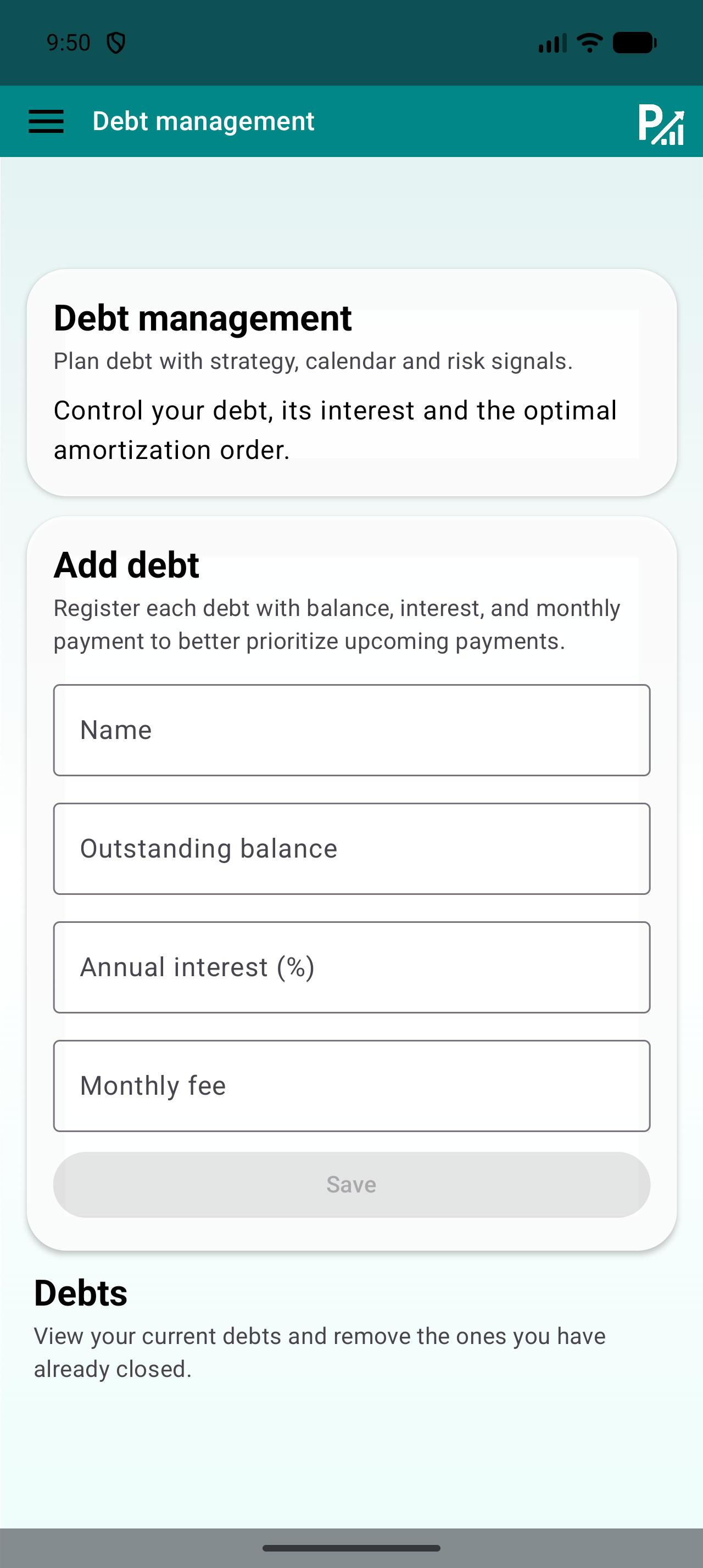
Prepare current information for the commitment. In Debt, enter its name, outstanding balance, annual interest and monthly payment in their respective fields. Check units and percentages: a balance and a payment represent different figures.

Save and review the debt in the list. Compare the fields with the document used and keep its reference date. The screen organises your information; it does not change the contract or pay the creditor.

Do this
  1. Fill in the name and outstanding balance.
  2. Check annual interest and monthly payment against the document.
  3. Save and review the created debt.
✓ What you should see

The debt appears with verifiable details and a known reference date.

✦ Tip

Do not enter the original amount when the field asks for the remaining outstanding balance.

Add debt form: name, outstanding balance, annual interest and monthly payment.
Check the annual percentage and monthly payment in their respective fields.
03
Debt → Records → Records list

Review commitments and payment records separately

Review balance and payment against current information. When a payment occurs, check how it appears in Records and how the debt updates in your version. The full payment can include amounts that do not reduce the outstanding balance by the same amount.

If you consult scenarios or strategies, review assumptions and inputs before comparing results. Keep commitment details and transaction history reconciled with your documents; do not assume adding an expense automatically updates every screen.

Do this
  1. Compare the balance with the latest document.
  2. Check each payment and avoid duplicating its record.
  3. Review the scope of any scenario you consult.
✓ What you should see

You can distinguish outstanding balance, payment and recorded entries.

✦ Tip

Note the reference date; comparing balances from different days may produce legitimate differences.

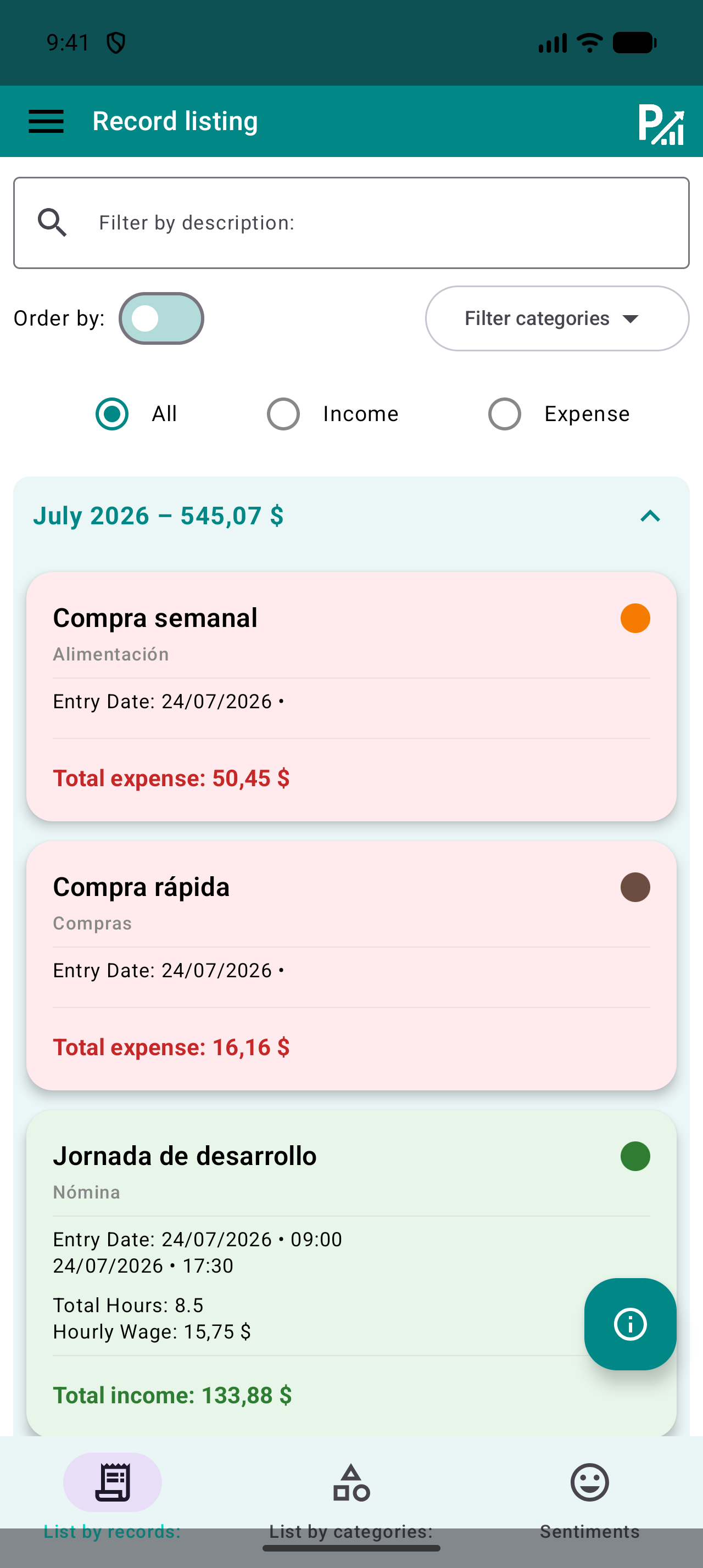
Prism records list with description search, category filters and income or expense filters.
Search descriptions and narrow the category or type to review specific records.
04
Net worth → Positions / Summary

Review assets, liabilities and net worth

In Positions, use available controls to add or update what you want to track. Check whether each item is an asset or liability, its value and reference date. Avoid including the same account or commitment twice.

In Summary, compare assets, liabilities and net worth with those positions. Consult History to review changes. Net-worth evolution and monthly record flow are different measures: a valuation change does not necessarily represent recorded income.

Do this
  1. Check each position’s type and value.
  2. Check for duplicated items before confirming.
  3. Compare Summary and History with reviewed positions.
✓ What you should see

The summary is based on identifiable positions and dated information.

✦ Tip

Do not interpret total net worth as available cash: review each position’s nature.

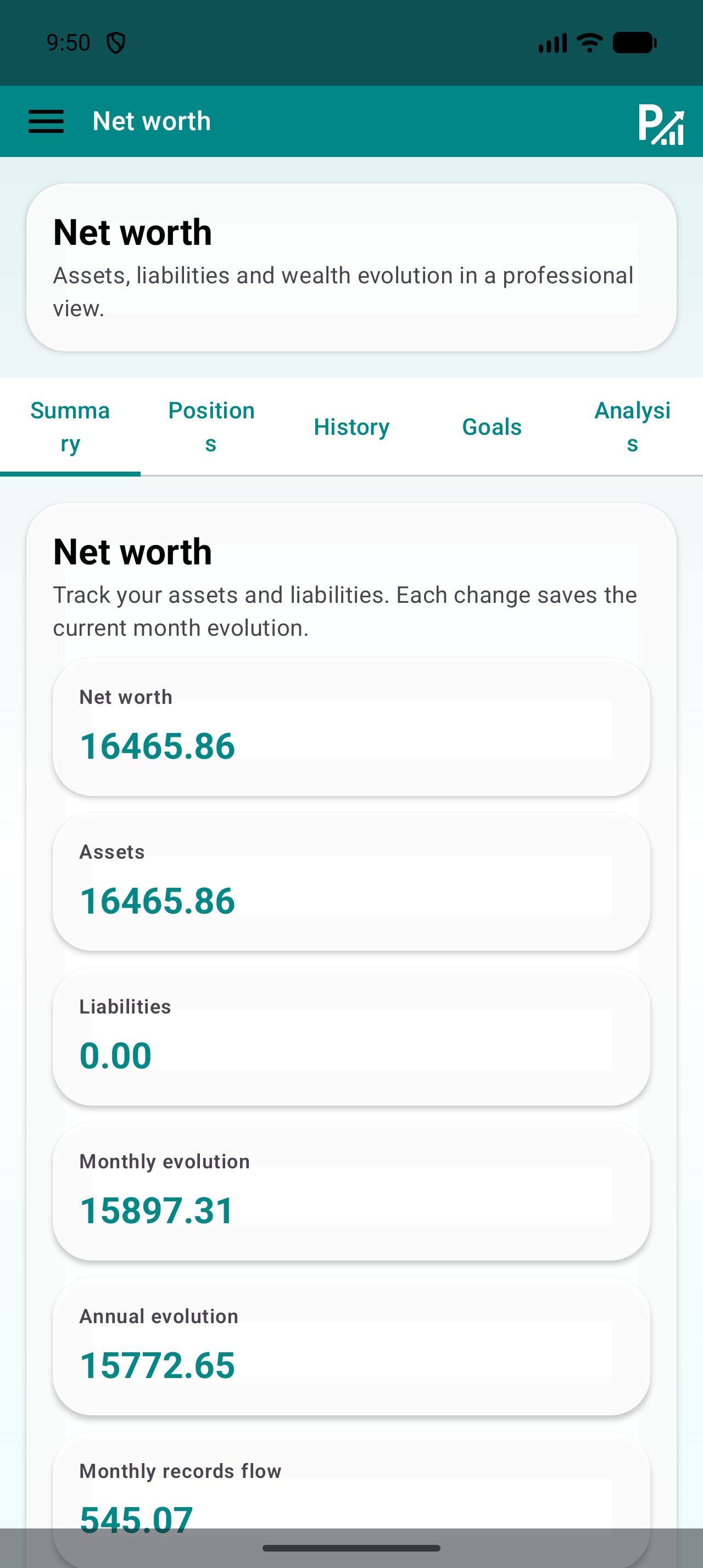
Net-worth summary with Net worth, Assets and Liabilities cards.
Compare these cards with your positions before interpreting changes.
05
Menu → Budgets

Create and check a monthly budget

Open Budgets, select a category and enter the monthly limit you want to track. The limit is a tracking reference, not a money movement: saving it does not record an expense or move funds between accounts.

Start with a category that already has recorded expenses. After saving, compare the spent amount and usage percentage with records from the same period. If they differ, check dates, categories and possible duplicates before changing the limit.

Do this
  1. Choose the category and enter a monthly limit.
  2. Save and find the active budget.
  3. Compare its spending with the records list for the same category and month.
✓ What you should see

You can see the amount recorded in that category against your chosen limit.

✦ Tip

Usage example: a limit of 300 and 75 recorded represent 25% usage. This is an example, not a spending recommendation.

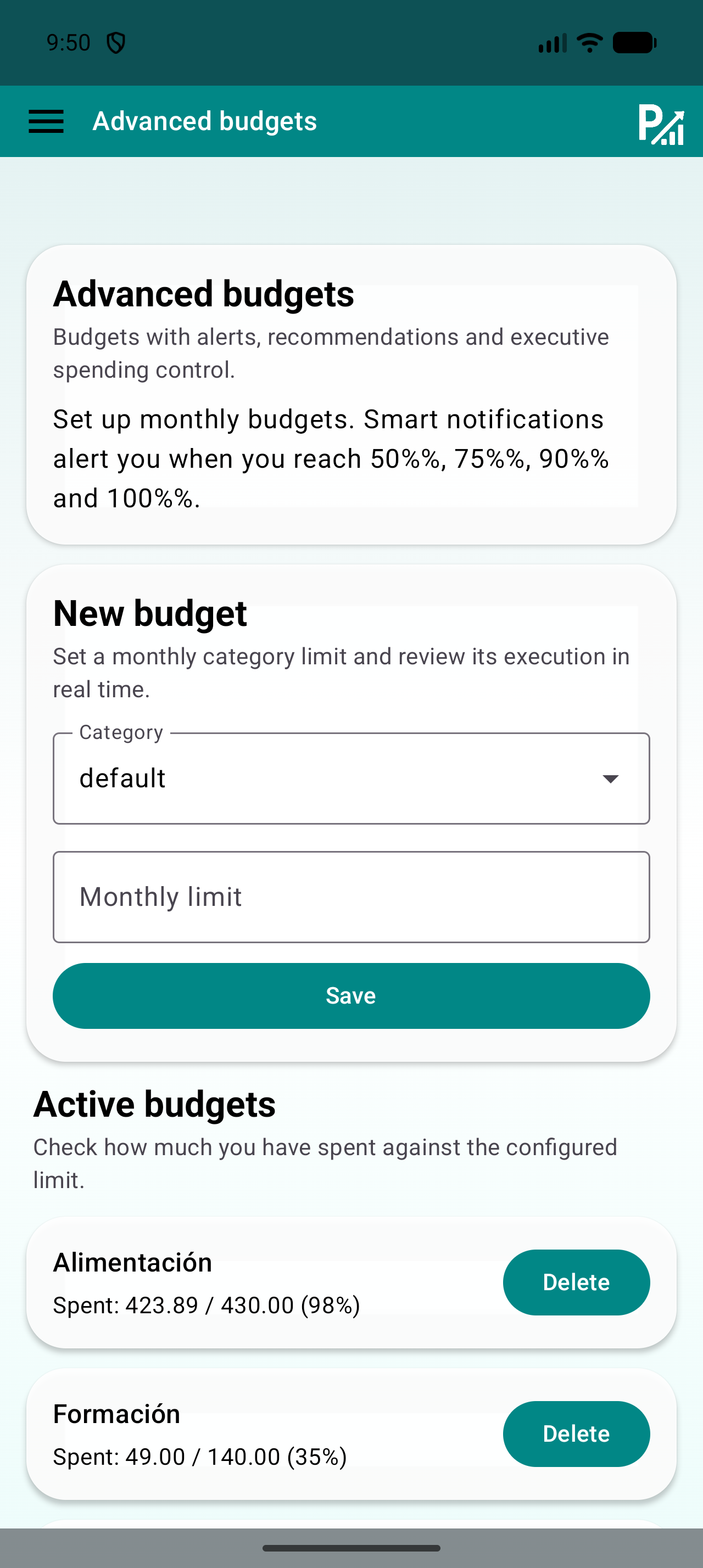
Budget screen with a category selector, monthly limit and Save button.
The limit belongs to a category. Make sure your expenses use that same category.
06
Records list → Calendar → Charts or Statistics

Review weekly and close the month

In the records list, search descriptions and use type and category filters to find the entries you want to review. Check amounts, dates and repeated records. The Calendar helps locate days with activity; colours do not replace reading the details.

At month end, use the same period in Charts, Statistics and Budgets. Compare the result with receipts you keep and note the category or habit to review next month. Your records balance depends on what you entered and may differ from your bank balance.

Do this
  1. Filter the week’s records and check the details.
  2. Correct mistakes in the original record.
  3. At month end, compare tools using the same period.
✓ What you should see

The period is reviewed and you know which entries underpin your charts and budgets.

✦ Tip

Keep reviews short and regular. Checking ten entries promptly is usually easier than reconstructing several months.

Prism records list with description search, category filters and income or expense filters.
Search descriptions and narrow the category or type to review specific records.
07
Menu → Export / Backup

Keep a copy and check the export

Find Export or Backup in your version. Choose an available format for your intended use and save the file in a private location. Open the export and check it includes the expected period and entries.

An export for reviewing data and a restorable backup may serve different purposes. Before changing devices or restoring, check the supported format, keep the previous copy and review your version’s restore instructions. Do not assume CSV can recover all settings.

Do this
  1. Open Export or Backup and choose the appropriate format.
  2. Save the copy with a recognisable date.
  3. Open the file and check its contents before relying on it.
✓ What you should see

You have a checked file and know whether it is intended for review or restoration.

✦ Tip

Files may contain your financial data. Only share a file you have reviewed with someone you have chosen.

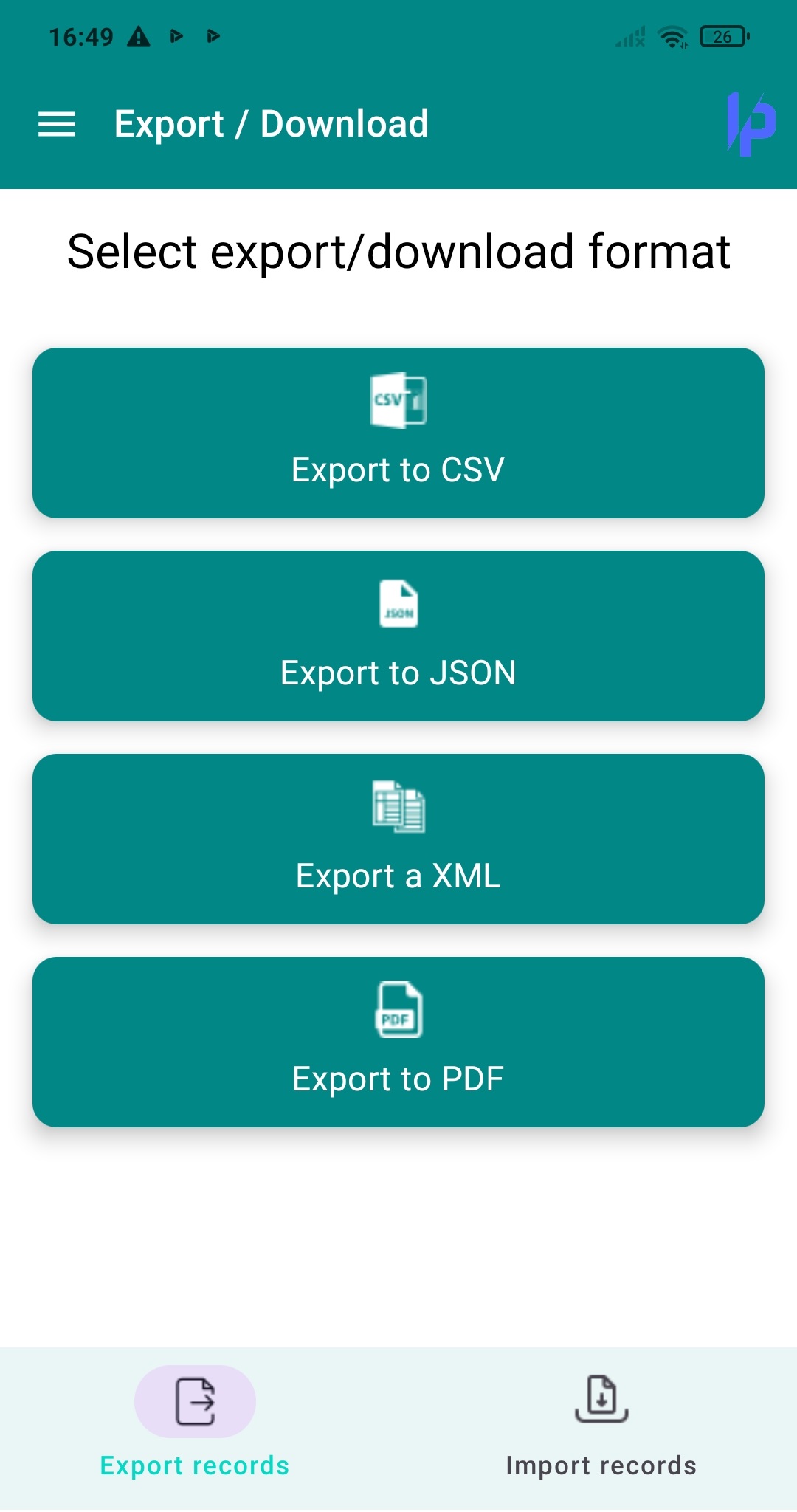
Prism Export screen showing CSV, JSON and XML options.
Choose a format available in your version and check the downloaded file.
WRAP UP

Quick checklist

  • My debts have verifiable details and reference dates.
  • I distinguish outstanding balance, payment amount and recorded payment.
  • I have not duplicated accounts or commitments in positions.
  • I know net worth and monthly flow represent different measures.
AVOID THESE MISTAKES

Common mistakes

Entering an outdated balance

Check the date and whether the document shows the original or outstanding amount.

Duplicating a liability

Review positions and their source before adding the same commitment again.

Interpreting net worth as cash

Check which assets and liabilities make up the summary and their valuation dates.

NEXT STEP

Keep exploring

Follow us