PrismFinance
← All guides
Household or couple

A clear routine for household expenses and goals

Agree categories, avoid duplicates and review budgets and goals using a shared method.

◷ 25–35 min of practice◎ Finish with an agreed scope, consistent expenses, a goal and a method for reviewing the month.
BEFORE YOU START

What you will need

  • An agreement about which data and expenses to review.
  • Two shared payments and a goal you both understand.
  • Authorised access to the records you will use for the review.

Images are Android screenshots from an English-language version of Prism. Boxes and arrows point to the explained control; language, names and layout may differ in your version or platform.

01
Onboarding and Settings

Set up your starting point

In onboarding choose “Household or couple”, then your first priority: Daily control, Budget, Debt, Savings and emergency or Tax planning. These preferences personalise the experience; they do not change your recorded amounts.

If you already use Prism, open Settings and look for your financial focus or the option to reopen onboarding. Also check your currency and the categories you will use. Screen names and layouts may differ across Android, iOS and web.

Do this
  1. Select “Household or couple” as your personal profile.
  2. Choose one priority to start with and continue until confirmation.
  3. Open the menu and find Records, the records list and the tools for your priority.
✓ What you should see

Your profile is selected and you know where to record and review entries.

✦ Tip

If a tool is missing, check menu customisation in Settings. You can change your focus later.
02
Records and categories

Agree what belongs in the household record

Before entering data, agree which expenses to track: housing, utilities, food or other shared categories. Decide who records each payment and which descriptions to use. A convention such as “Household groceries” helps avoid two people recording the same purchase differently.

The Household or couple profile personalises the focus; selecting it does not create a joint account or automatically synchronise data between people. Organise reviews around the records you have chosen to use and share only information both of you have agreed on.

Do this
  1. Agree on shared categories and which expenses stay outside.
  2. Assign who records each payment to avoid duplicates.
  3. Try one actual expense and review its description together.
✓ What you should see

You have a clear agreement about what to record and who records it.

✦ Tip

A contribution to a shared fund and a purchase paid from it may represent the same money. Define your method to avoid counting the expense twice.

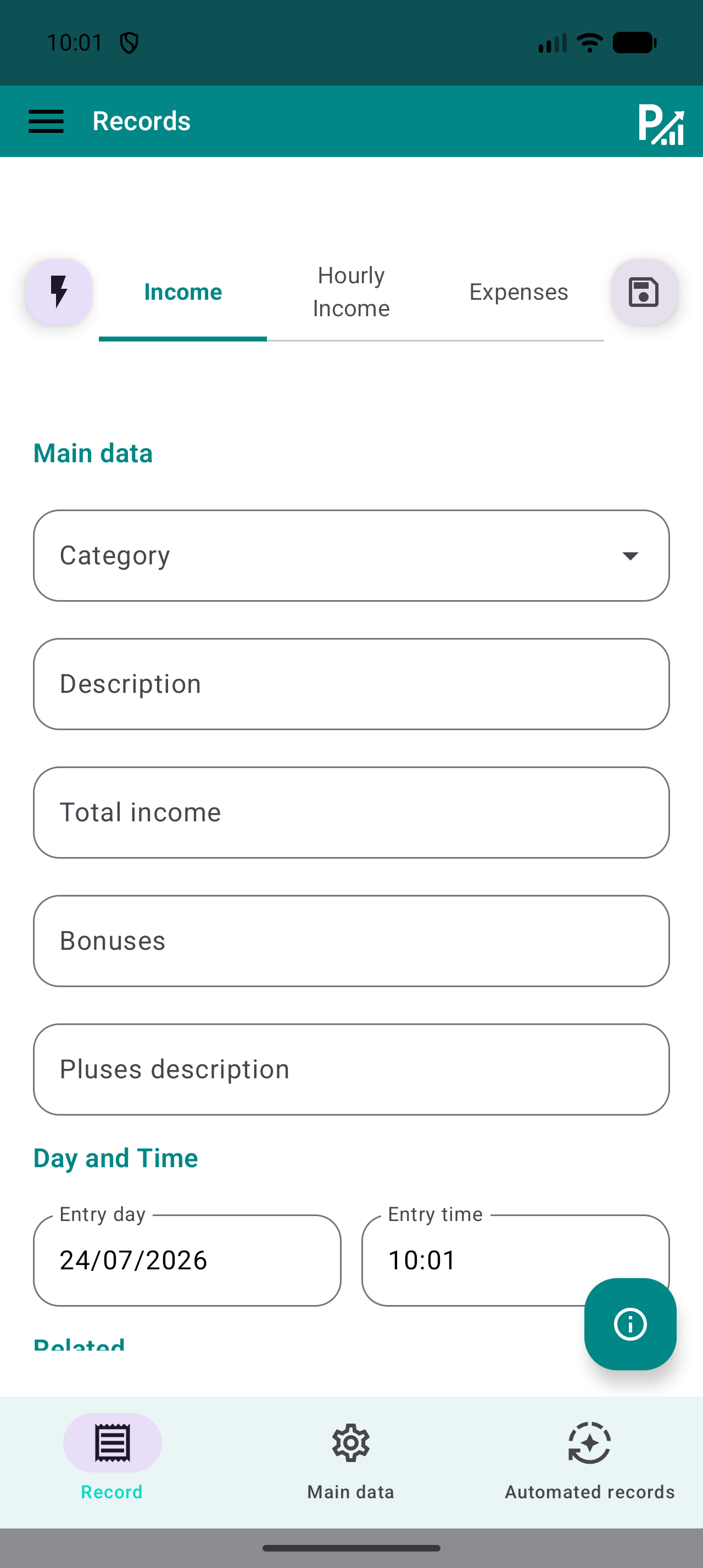
Prism record form showing category, description, amount and date.
The category organises the record; the description helps you recognise it later.
03
Records → Expenses

Give each expense a useful category

Select Expenses and record an actual payment. Separate, for example, Food, Housing, Transport and Leisure. Add a short description you can search later; consistent categories make budgets and analysis easier to interpret.

If you have configured accounts or tags, check the association before saving. Start with a short category list rather than several almost identical categories. Do not record a payment again just because it also appears on a receipt or statement.

Do this
  1. Select Expenses and the appropriate category.
  2. Add the description, amount and payment date.
  3. Save and confirm the record is an expense, not income.
✓ What you should see

Your actual expenses are organised into recognisable categories.

✦ Tip

Always use “Food” for groceries instead of alternating between similar categories.

Prism record form showing category, description, amount and date.
The category organises the record; the description helps you recognise it later.
04
Menu → Budgets

Create and check a monthly budget

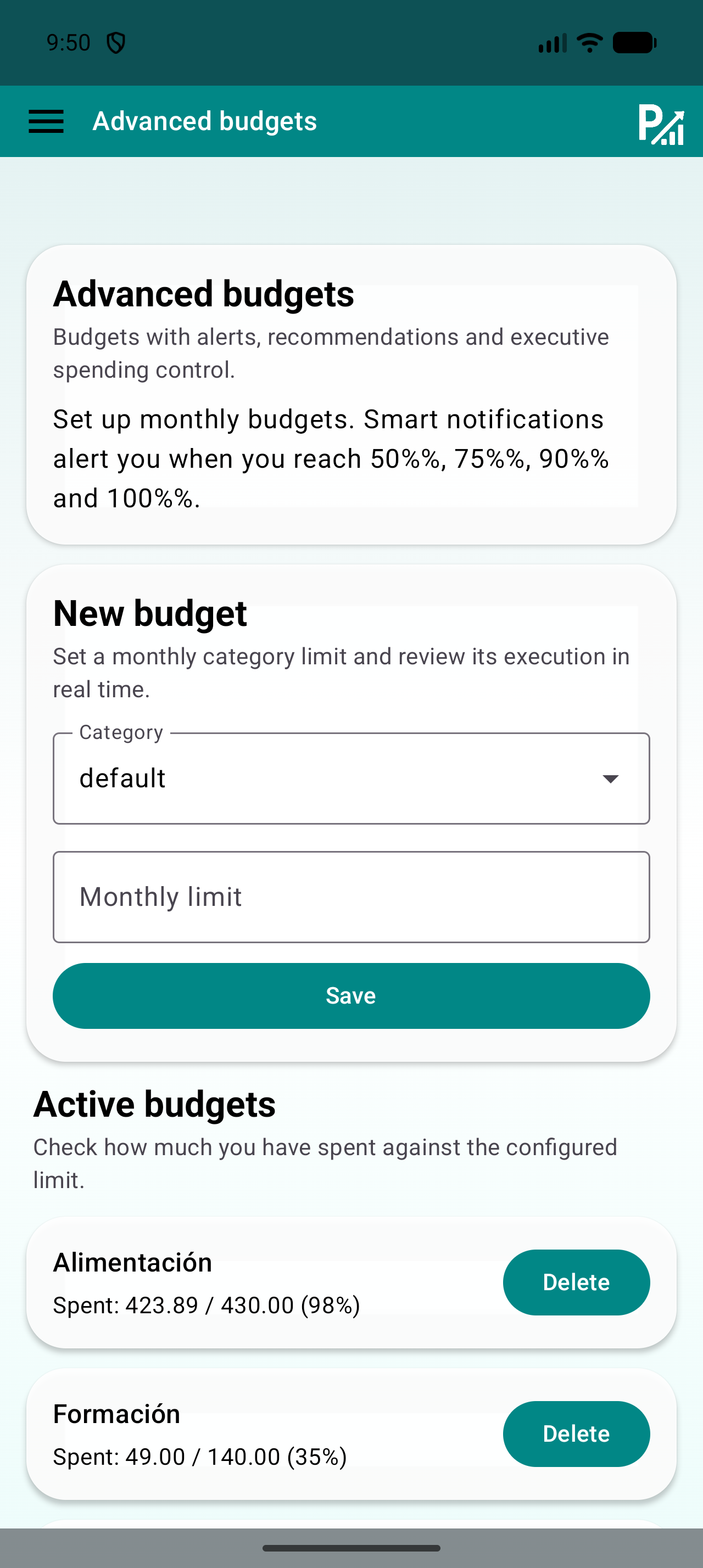
Open Budgets, select a category and enter the monthly limit you want to track. The limit is a tracking reference, not a money movement: saving it does not record an expense or move funds between accounts.

Start with a category that already has recorded expenses. After saving, compare the spent amount and usage percentage with records from the same period. If they differ, check dates, categories and possible duplicates before changing the limit.

Do this
  1. Choose the category and enter a monthly limit.
  2. Save and find the active budget.
  3. Compare its spending with the records list for the same category and month.
✓ What you should see

You can see the amount recorded in that category against your chosen limit.

✦ Tip

Usage example: a limit of 300 and 75 recorded represent 25% usage. This is an example, not a spending recommendation.

Budget screen with a category selector, monthly limit and Save button.
The limit belongs to a category. Make sure your expenses use that same category.
05
Menu → Goals

Define a goal and review its progress

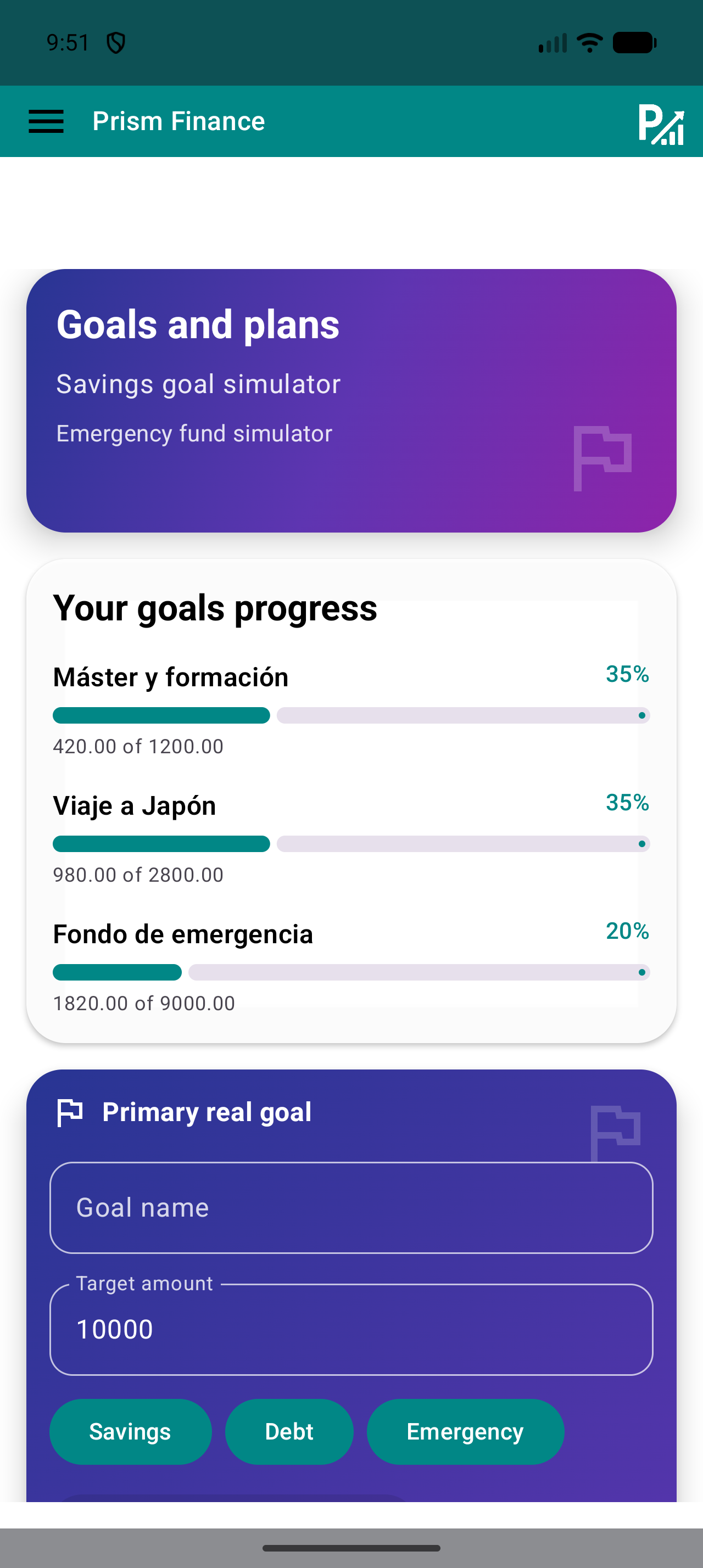
Open Goals and choose a concrete name such as “Personal reserve” or “Training”. Enter the target amount and select the appropriate type. Use the tracking options available in your version to reflect actual progress.

A goal or simulator helps organise a plan; it does not instruct a bank transfer. Before interpreting the percentage, check the target amount and the progress shown on screen. Keep actual contributions and estimates clearly identified.

Do this
  1. Enter the goal name and target amount.
  2. Choose the type and confirm using the control available in your version.
  3. Review the progress and compare it with your actual contributions.
✓ What you should see

You have an identifiable goal whose progress you can review without confusing it with transferred money.

✦ Tip

Start with a goal you can explain in one sentence and review it at the same time each week.

Goals screen with a goal name, target amount and Savings, Debt and Emergency types.
Choose a recognisable name and check the amount and goal type before confirming.
06
Records → Automatic records

Automate only predictable entries

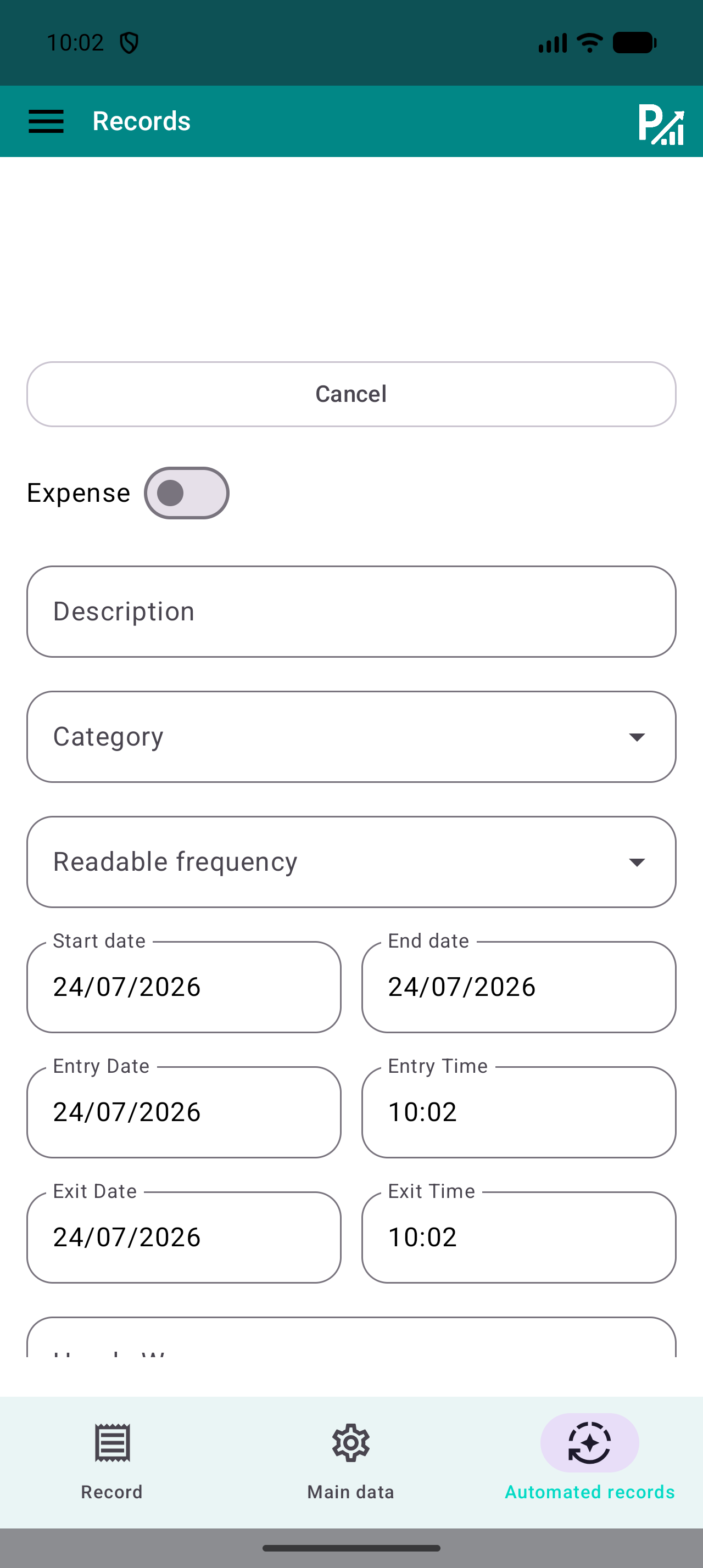
For a recurring entry, open Automatic records and configure the available type, description, category, amount, frequency and dates. Check the full period before confirming. Automation creates Prism records; it does not execute payments or query your bank.

After enabling it, review the first occurrences in the records list. If you already added a manual entry or the amount changed, correct the setup and avoid counting both. For uncertain payments, a template reviewed when paid may be more appropriate than a fixed recurrence.

Do this
  1. Choose an entry with a known amount and frequency.
  2. Set its category, frequency and start and end dates.
  3. Confirm and check the occurrences to avoid duplicates.
✓ What you should see

The recurrence is configured and you have checked its entries.

✦ Tip

Do not enable a recurrence over an already recorded period without checking which entries it will generate.

Automatic record form showing frequency and start and end dates.
Check the frequency and dates: an incorrect recurrence can create duplicates.
07
Records list → Budgets → Goals

Review the month using the same records

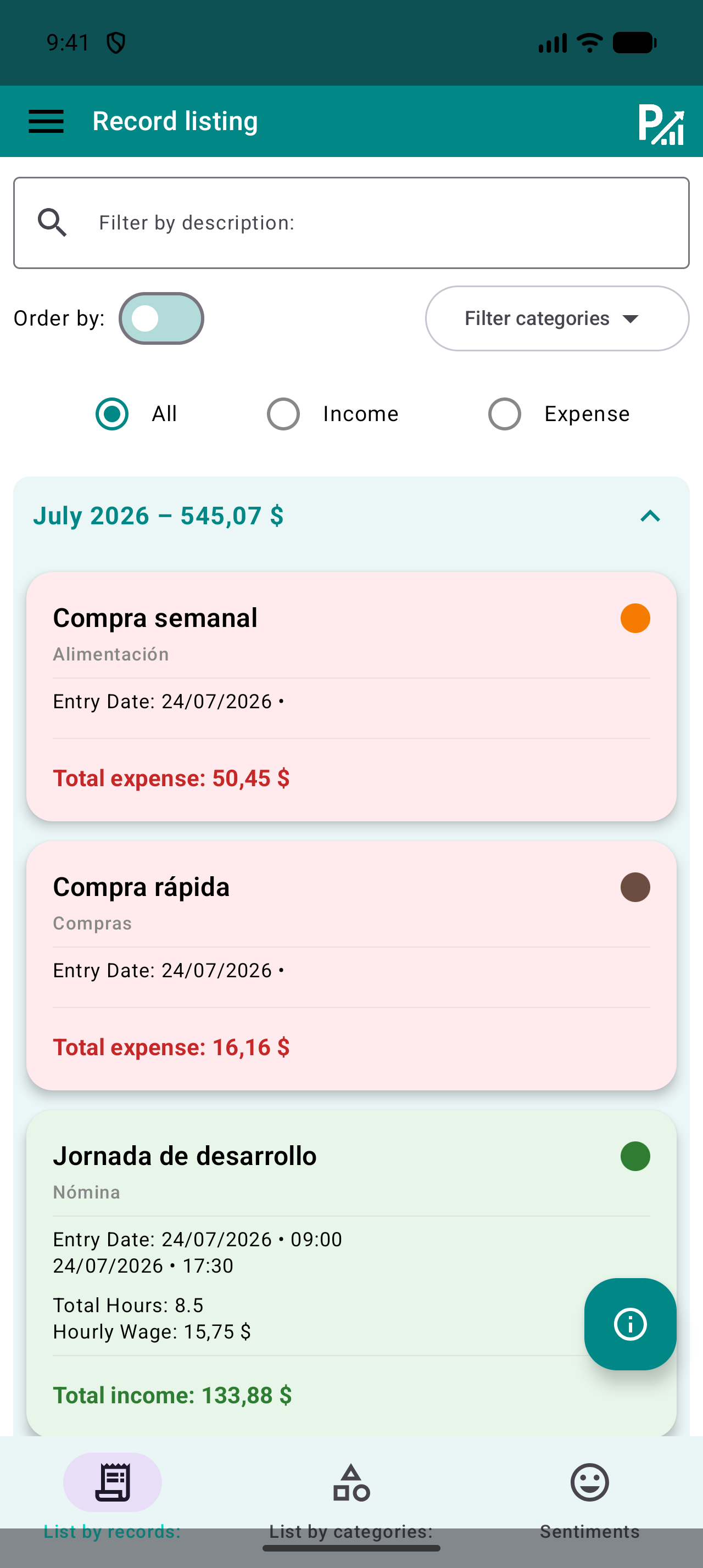
Select the month and review only the agreed categories. Compare expenses with their limits and check shared goal progress. When a figure does not match, open the original entry before drawing conclusions.

Finish with one concrete decision: review a category, change a limit or correct a record. If you need to share an export, first check which data it contains. A regular conversation is more useful than trying to interpret a chart without context.

Do this
  1. Use the same month and categories for the review.
  2. Verify unclear entries and avoid duplicates.
  3. Note one decision and schedule the next review.
✓ What you should see

You have reviewed a shared period and agreed on the next adjustment.

✦ Tip

The household balance includes what you recorded. It should not automatically be interpreted as a jointly available balance.

Prism records list with description search, category filters and income or expense filters.
Search descriptions and narrow the category or type to review specific records.
08
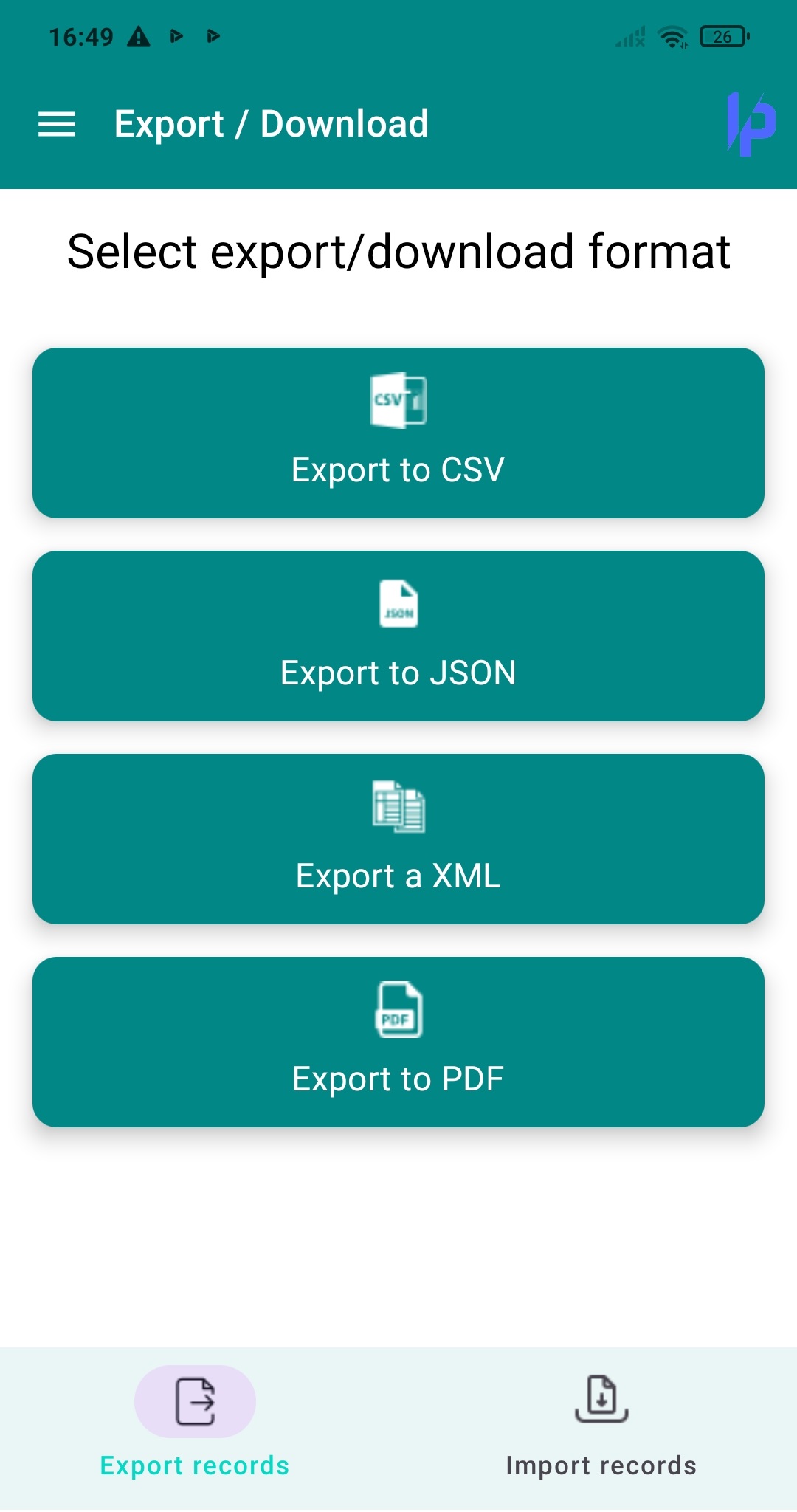
Menu → Export / Backup

Keep a copy and check the export

Find Export or Backup in your version. Choose an available format for your intended use and save the file in a private location. Open the export and check it includes the expected period and entries.

An export for reviewing data and a restorable backup may serve different purposes. Before changing devices or restoring, check the supported format, keep the previous copy and review your version’s restore instructions. Do not assume CSV can recover all settings.

Do this
  1. Open Export or Backup and choose the appropriate format.
  2. Save the copy with a recognisable date.
  3. Open the file and check its contents before relying on it.
✓ What you should see

You have a checked file and know whether it is intended for review or restoration.

✦ Tip

Files may contain your financial data. Only share a file you have reviewed with someone you have chosen.

Prism Export screen showing CSV, JSON and XML options.
Choose a format available in your version and check the downloaded file.
WRAP UP

Quick checklist

  • We know which expenses belong and who records them.
  • A shared payment appears once.
  • We use the same categories and period when reviewing.
  • We share only agreed and reviewed data.
AVOID THESE MISTAKES

Common mistakes

Assuming the profile shares data

Selecting the profile does not automatically enable collaboration or a joint account.

Both recording the same purchase

Assign who records each entry and find the original before repeating it.

Mixing periods when comparing

Choose one month and shared categories for the whole review.

NEXT STEP

Keep exploring

Follow us